

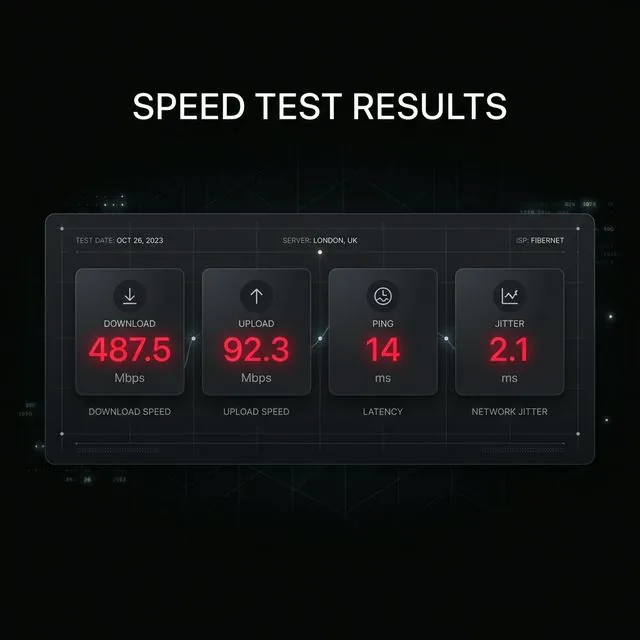
You ran a speed test and received four distinct numbers: download, upload, ping, and jitter. Most users look at the download number, feel either relieved or frustrated, and immediately close the tab. That approach ignores the three specific metrics that explain why websites feel slow, Zoom calls freeze, and online games rubber-band.
Each metric measures a fundamentally different physical characteristic of your broadband line. Here is what every number means in plain English, what thresholds you should expect, and how to troubleshoot bad results.
2. The 4 Speed Test Metrics at a Glance
| Metric | What It Measures | Excellent | Good | Problematic |
|---|---|---|---|---|
| Download | Data flow from web to device | > 200 Mbps | 50–100 Mbps | < 25 Mbps |
| Upload | Data sent from device to web | > 50 Mbps (Fiber) | 15–30 Mbps | < 5 Mbps |
| Ping (Latency) | Round-trip packet reaction time | < 15 ms | 20–45 ms | > 80 ms |
| Jitter | Ping variance over time | < 3 ms | 4–10 ms | > 20 ms |
3. Download Speed (Mbps)
Download speed measures how rapidly data moves from remote internet servers to your device. It directly dictates streaming quality, web page assets, and game installation speeds.
Download speed is measured in megabits per second (Mbps), not megabytes per second (MB/s). Because there are 8 bits in one byte, a 100 Mbps internet connection downloads at a theoretical maximum rate of 12.5 MB/s. That is why downloading a 1 GB file takes roughly 80 seconds on a 100 Mbps plan, rather than 10 seconds.
For 90% of households, any download speed above 100 Mbps yields diminishing returns in daily web browsing. Read our full breakdown on how much speed you actually need.
4. Upload Speed (Mbps)
Upload speed measures how fast data travels from your computer or phone to remote servers. It is essential for video meetings (Zoom, Teams), cloud file syncing, and live streaming.
Most cable internet subscribers suffer from extreme asymmetry: 300 Mbps download coupled with only 10 Mbps upload. That 10 Mbps pipe is quickly overwhelmed when multiple people in a home take video meetings or back up photos. If your Zoom call stutters while Netflix plays smoothly, upload bandwidth is your bottleneck. Learn more about what counts as a good upload speed.
5. Ping / Latency (ms)
Ping (latency) is the round-trip delay in milliseconds (ms) for a data packet to travel from your device to a test server and back. It determines how responsive and instantaneous your connection feels.
Unlike download and upload (where higher is better), lower ping is always superior:
- Under 15ms: Fiber FTTH tier. Instantaneous response in competitive first-person shooters.
- 20–40ms: Typical high-quality cable or DSL connection. Imperceptible lag during voice calls.
- 50–100ms: Noticeable latency in online games; acceptable for video streaming and general browsing.
- Over 100ms: Heavy lag, input delay, and frequent audio crosstalk during video conferencing.
6. Jitter & Stability (ms)
Jitter represents the variation in latency over consecutive packets. If your ping fluctuates between 15ms and 95ms unpredictably, you have severe jitter.
High jitter is far more destructive to real-time applications than a steady, moderate ping. In gaming, jitter causes rubber-banding (where your player teleports backward). In Zoom and Discord, jitter causes robotic audio dropouts and frozen frames. A good connection maintains jitter under 5ms. If your jitter exceeds 20ms, you are experiencing local Wi-Fi interference or modem bufferbloat.
7. Diagnostic Decision Tree for Your Results
When analyzing your speed test diagnostics, follow this engineering troubleshooting flowchart:
- Download is below 70% of plan, but Upload is normal: Suspect neighborhood cable node congestion or ISP throttling during peak evening hours. Read our ISP throttling detection guide.
- Upload is critically low (<5 Mbps): Common on legacy DOCSIS cable. Disconnect background cloud backups (Dropbox, iCloud, Google Drive) and retest.
- Ping is high (>80ms) even on wired Ethernet: The test server may be geographically distant, or your ISP has inefficient BGP routing tables. Try selecting a closer server.
- Jitter is high on Wi-Fi but drops on Ethernet: Local 2.4 GHz/5 GHz channel congestion is interfering with packets. Switch to a 5 GHz or 6 GHz network or run wired Cat6.
- Ping spikes dramatically while running the test: Classic bufferbloat. Your router lacks Smart Queue Management (SQM).
8. How to Run an Accurate Speed Benchmark
For repeatable, scientific diagnostic results:
- Connect your computer via a direct Cat6 Ethernet cable rather than Wi-Fi to eliminate wireless interference.
- Close background torrent clients, cloud synchronization apps, and VPN software.
- Run at least three tests across different times of day (morning, afternoon, and 8 PM peak).
Comparing your results across multiple days reveals whether you have a consistent line or an oversubscribed neighborhood node.